-
Download the latest RocketBoard firmware to your PC by clicking:
RB_1_7.bin (fixes CRITICAL BUG in 1.6), then save it in a handy location.
- Close all programs and browser tabs except for this updater page. Other apps can interfere with USB communication.
- Connect your RocketBoard to your computer with a USB-C data cable.
-
Enter software-update mode:
- Press PWR to turn the board off (yellow status LED off). The red charge LED may blink if charging.
- Press and hold ARM.
- While holding ARM, press PWR to turn the board on.
- Keep holding Both buttons until the red and green LEDs turn on, then release. You’re now in software-update mode.
-
Click , browse to the folder where you saved the .bin file, and select it. The File:
None
will load.
- Click to link your board to the updater.
-
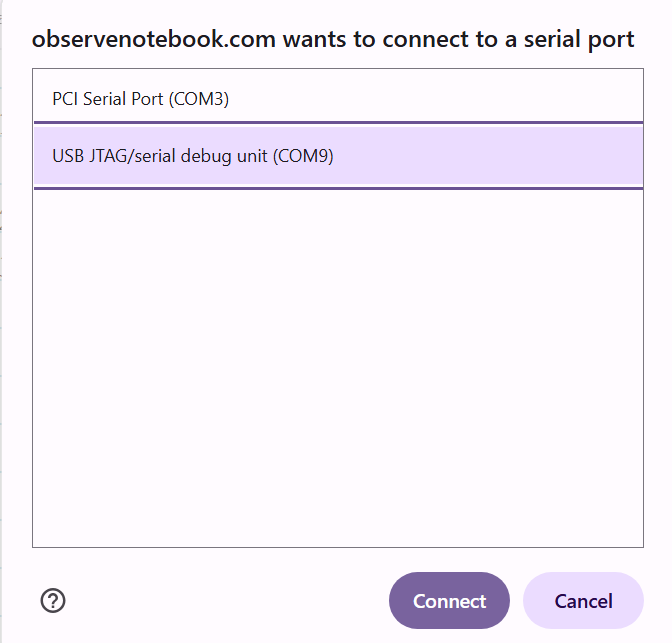
When the serial port dialog box appears, select the USB-JTAG/serial debug unit COM port and click the blue Connect button.
- When you see “Updater ready” in the progress window below, click .
- Watch the progress bar. The upload can take a few minutes—do not unplug the board during the update.
Progress
Connect the RocketBoard…
* Note: If your board gets
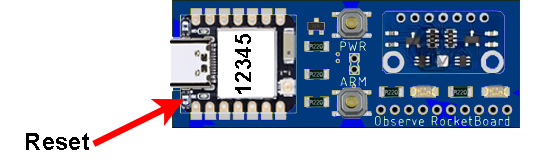
stuck in the update mode and is non-responsive, press the tiny reset button next to the USB port.